
Expose your local MCP servers to the world — without opening a port
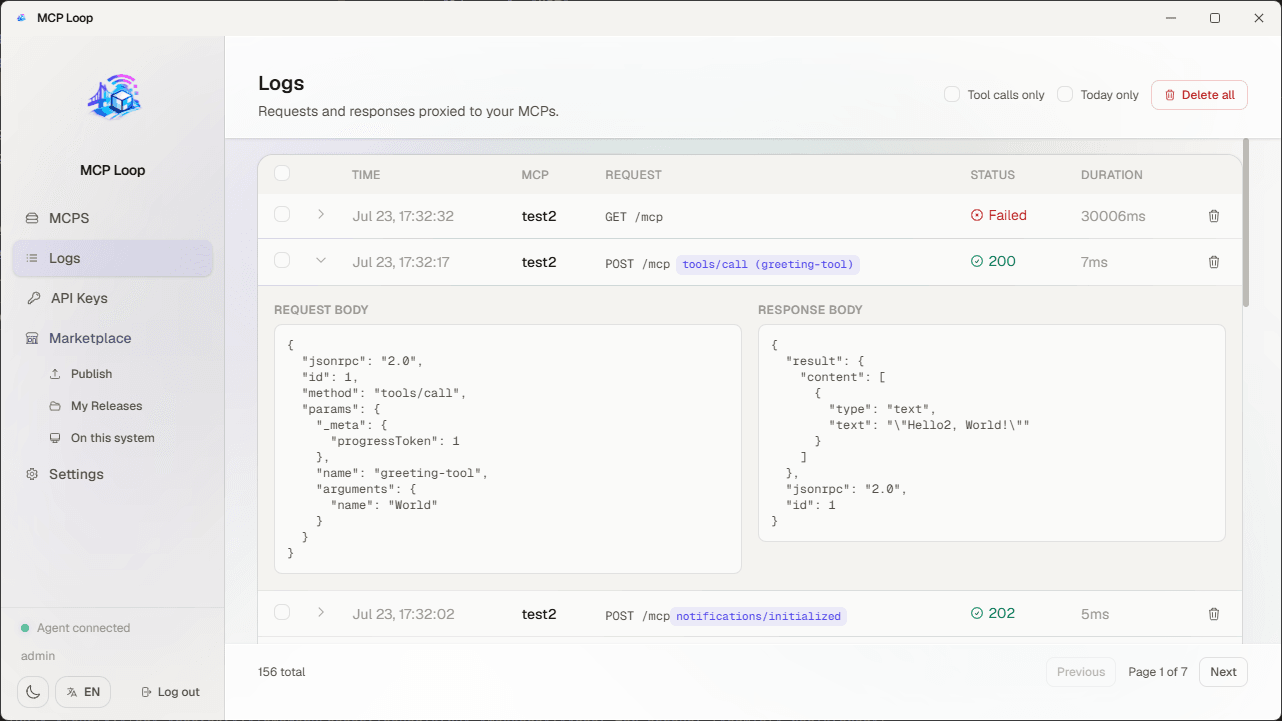
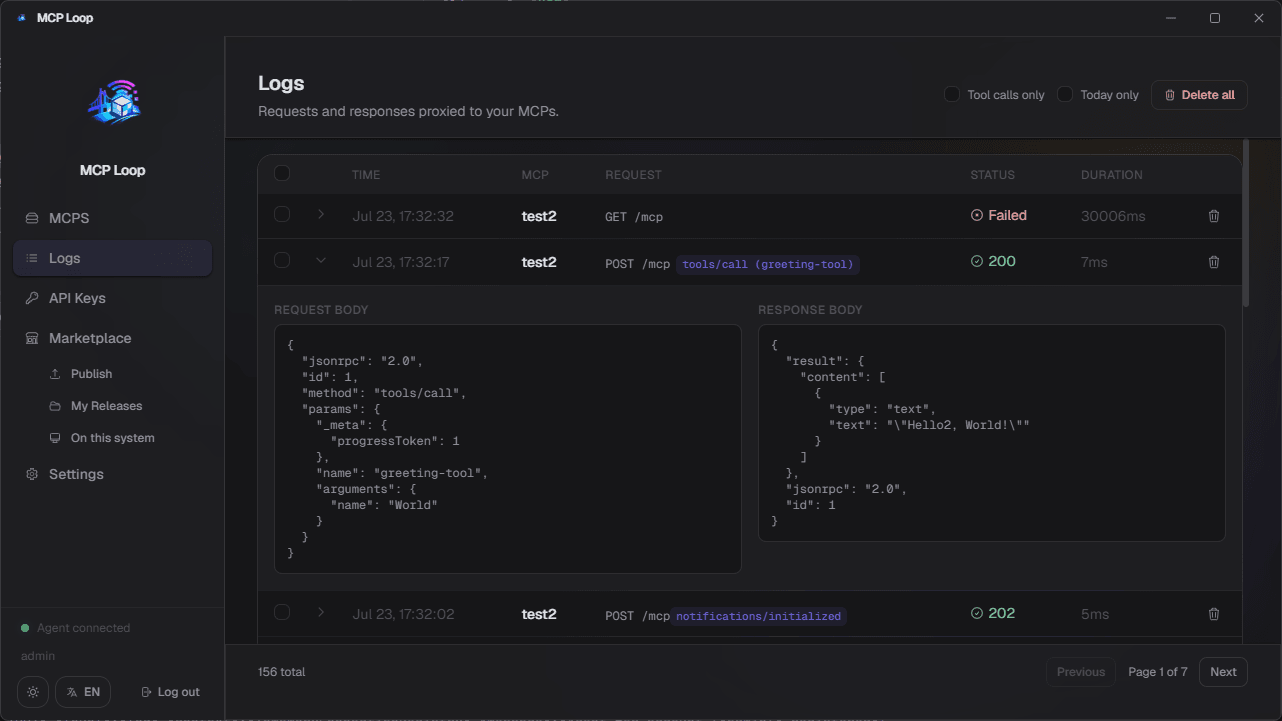
# any MCP client can call your local server
GET https://bridge.example.com/mcp/alice-notes/tools/list

→ forwarded to your desktop agent, then to localhost
How it works
Four steps between your laptop and a public MCP endpoint.
- 1
Create an account
Sign up and register the MCPs you want to expose, each with a name and the local port it runs on.
- 2
Run the desktop agent
The agent opens a single outbound WebSocket connection to the bridge — nothing needs to be reachable from the internet.
- 3
Get a public URL
Every MCP gets a stable address. Useable directly or via 'mcp-loop-stdio'
- 4
Use it anywhere
Point ChatGPT or any other MCP-capable client at the URL ( using the URL itself or 'mcp-list-stdio ). Requests are relayed to your machine and back in real time.
One relay, zero open ports
The backend never connects to your machine — your agent always dials out to it.
MCP client
ChatGPT or any other tool that speaks MCP over HTTP
MCP Loop
Routes each request to the right account's connected agent
Desktop agent
Forwards the request to your local MCP server and sends the response back
Because the connection is always initiated by your desktop agent, there's nothing to expose, forward, or leave open on your network.
No desktop app? Use the browser extension
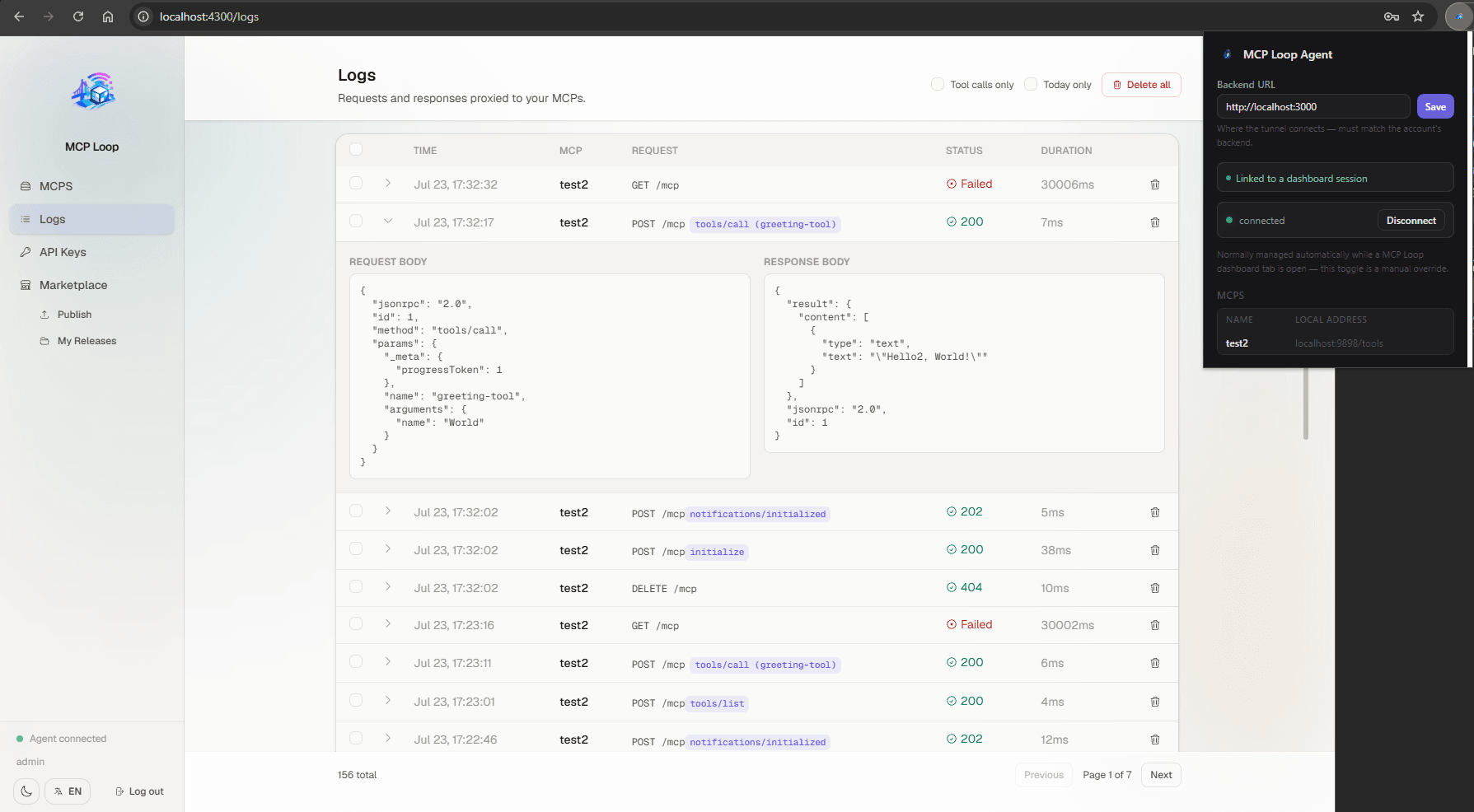
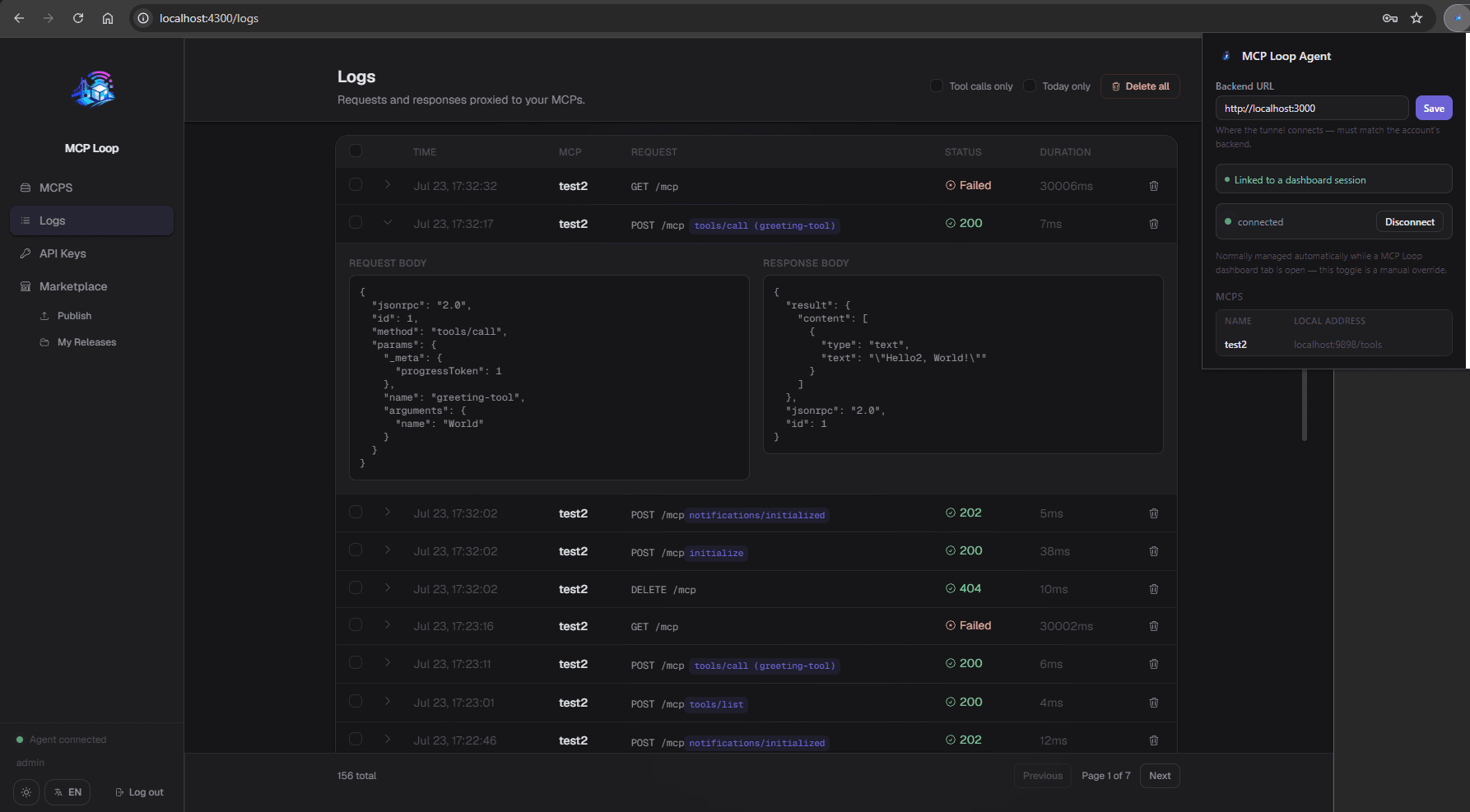
Install the MCP Loop Chrome extension and the dashboard tunnels your MCPs straight from the browser — no Electron install required.
Automatic handoff
Log into the dashboard as a normal website and the extension picks up your session automatically — no separate login in the extension itself.
Same protocol
Its background service worker speaks the exact same tunnel protocol as the desktop agent, forwarding to your local MCP servers the same way.
Always in sync
Add, remove, or edit MCPs in the dashboard and the extension's local routing table updates live, no reconnect needed.
Prefer a terminal? There's a CLI for that
Everything the desktop agent does — login, MCPs, logs, official tools — also runs headless, so you can tunnel from a server with no display at all.
Runs as a daemon
Start it in the foreground or install it as a proper background service — systemd on Linux, launchd on macOS, a logon task on Windows.
Same account, same tools
Logs into the same account and shares the desktop app's official-tools install directory, so an install from either one shows up in both.
Scriptable end to end
Every action — adding an MCP, checking logs, installing a tool — is a single command, so it drops straight into your own scripts or provisioning.
# log in, register an MCP, run it as a service
mcp-loop-cli login
mcp-loop-cli mcps add --name notes --transport stdio --command npx --args "-y my-mcp"
mcp-loop-cli daemon install

→ tunnels to the backend, same as the desktop agent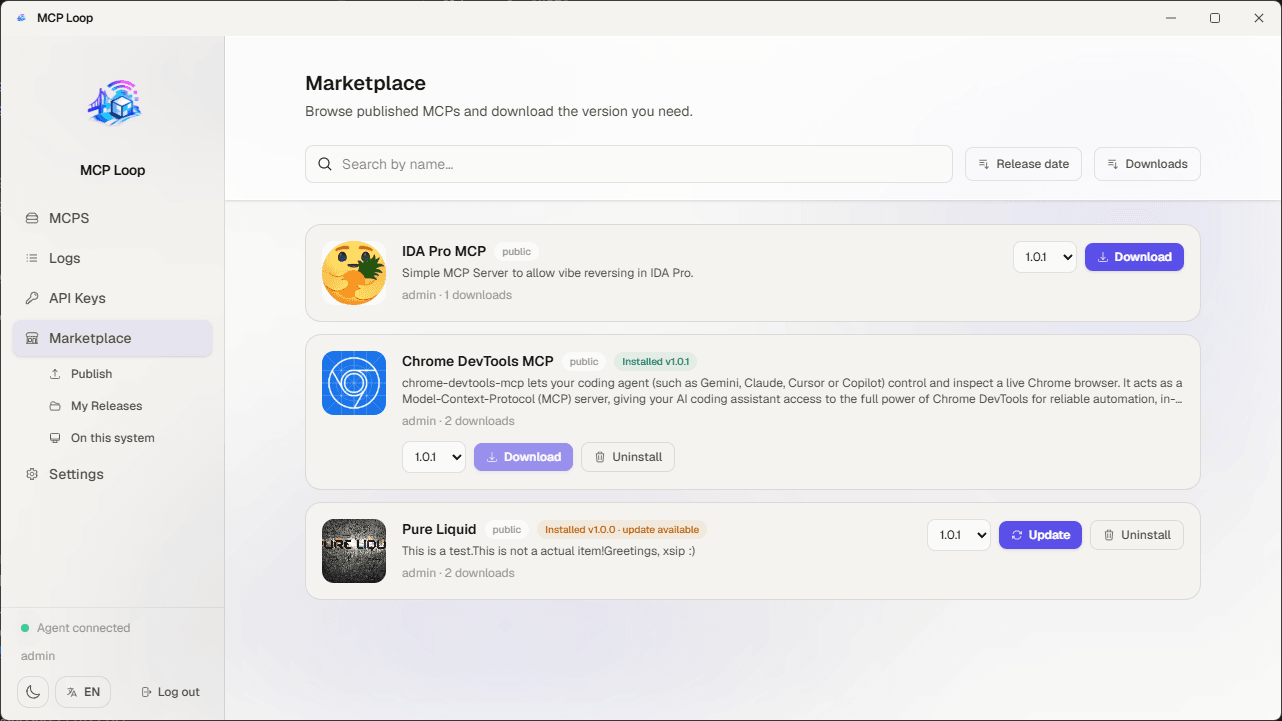
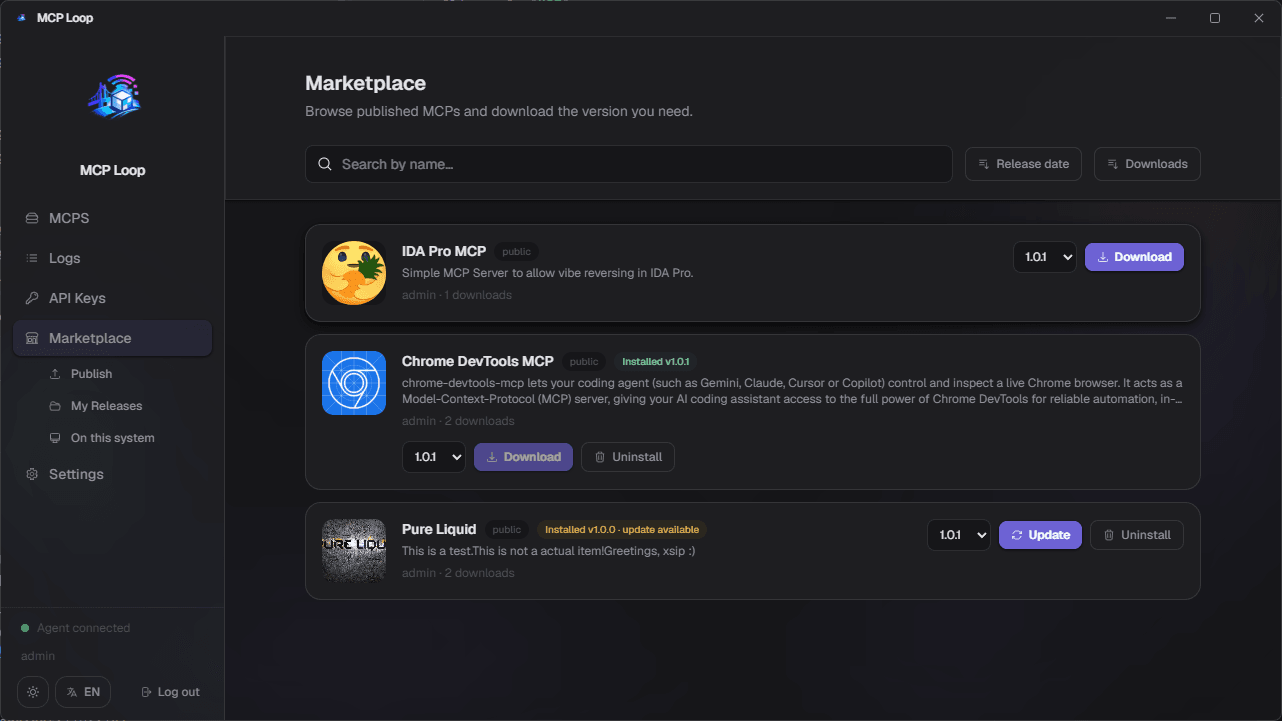
Publish and install MCPs from a marketplace
Browse MCPs other users have published, or share your own — versioned, searchable, and installed with one click.
Browse, search, and sort
Find listings by name, sorted by release date or download count, with a version history for each one.
One-click install
The desktop agent downloads the chosen version, unzips it, and cleans up the zip automatically — with a live progress bar the whole way through.
Stay up to date
Installed items are flagged the moment a newer version is published, with an Update button right there in the marketplace.
Manage installs and your account
Everything around running and maintaining MCPs, right next to the tabs that manage the tunnel itself.
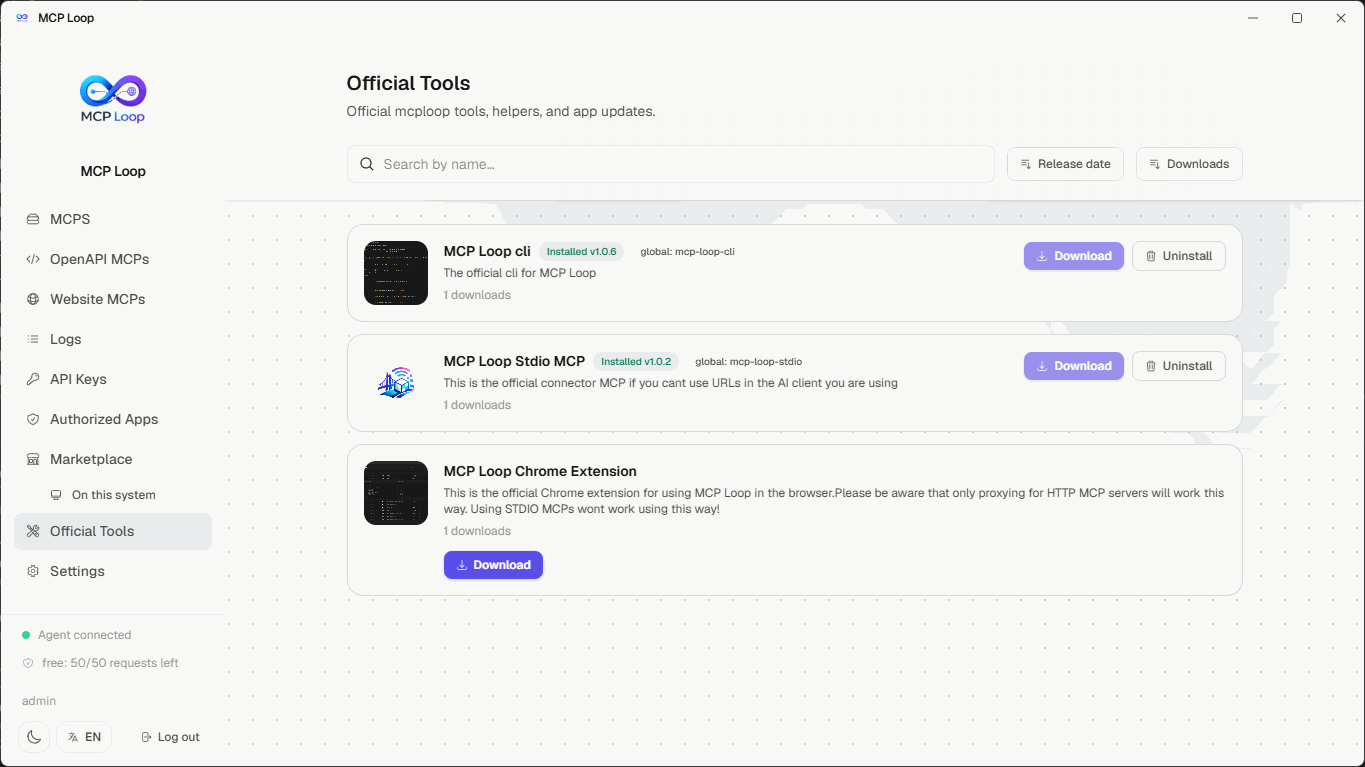
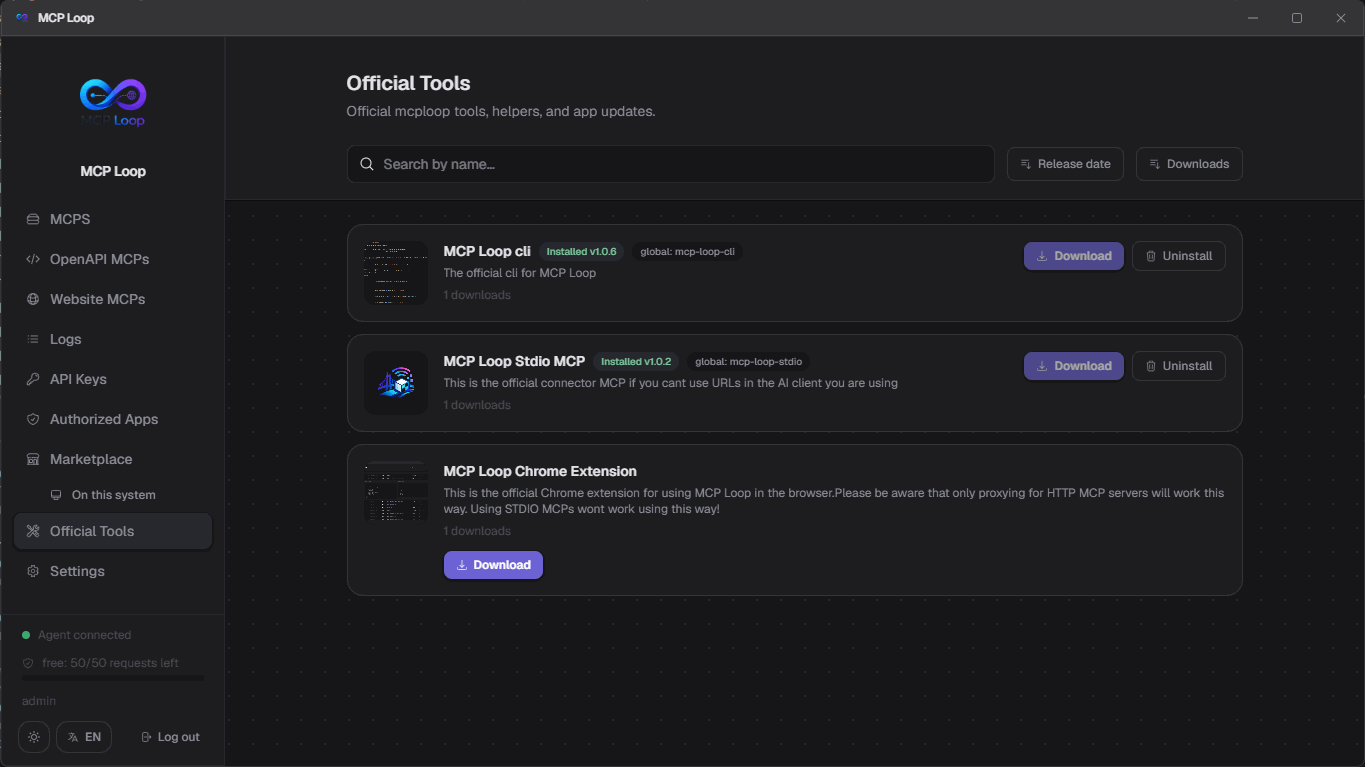
Official Tools
Browse and install curated one-click tools, flagged the moment an update ships. Anything with a runnable command gets shimmed onto PATH automatically at install time — nothing to configure.
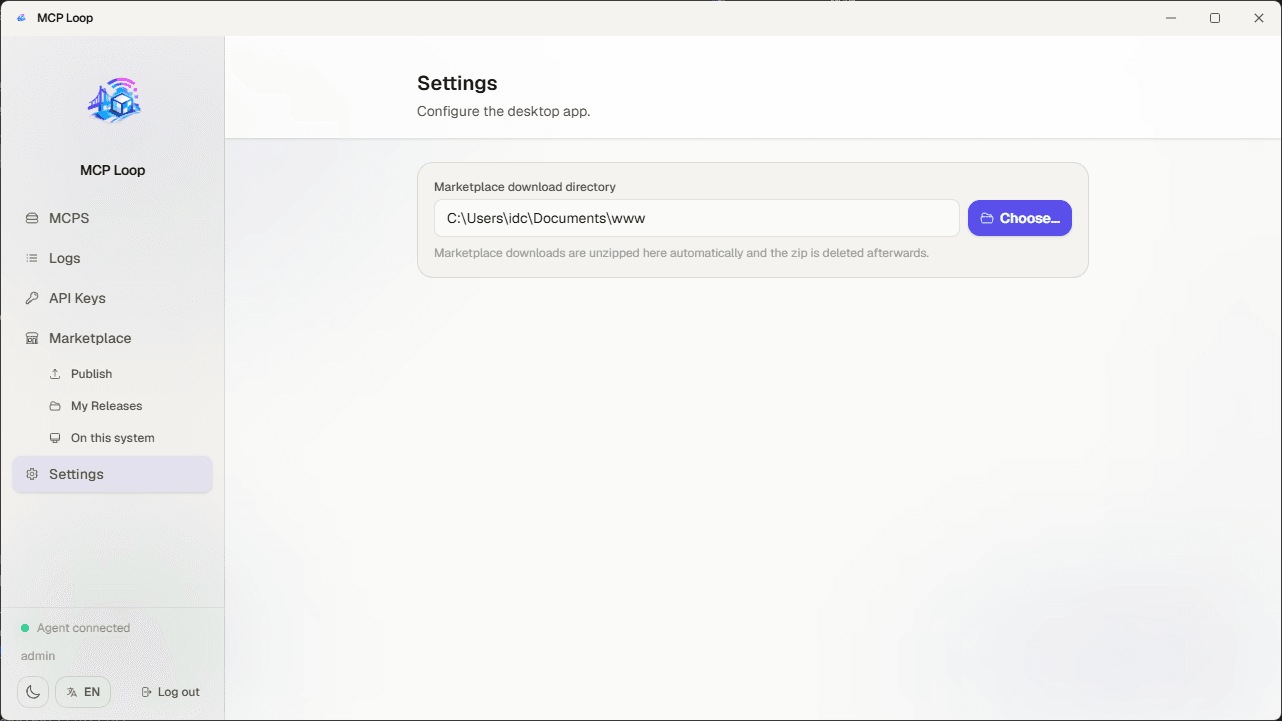
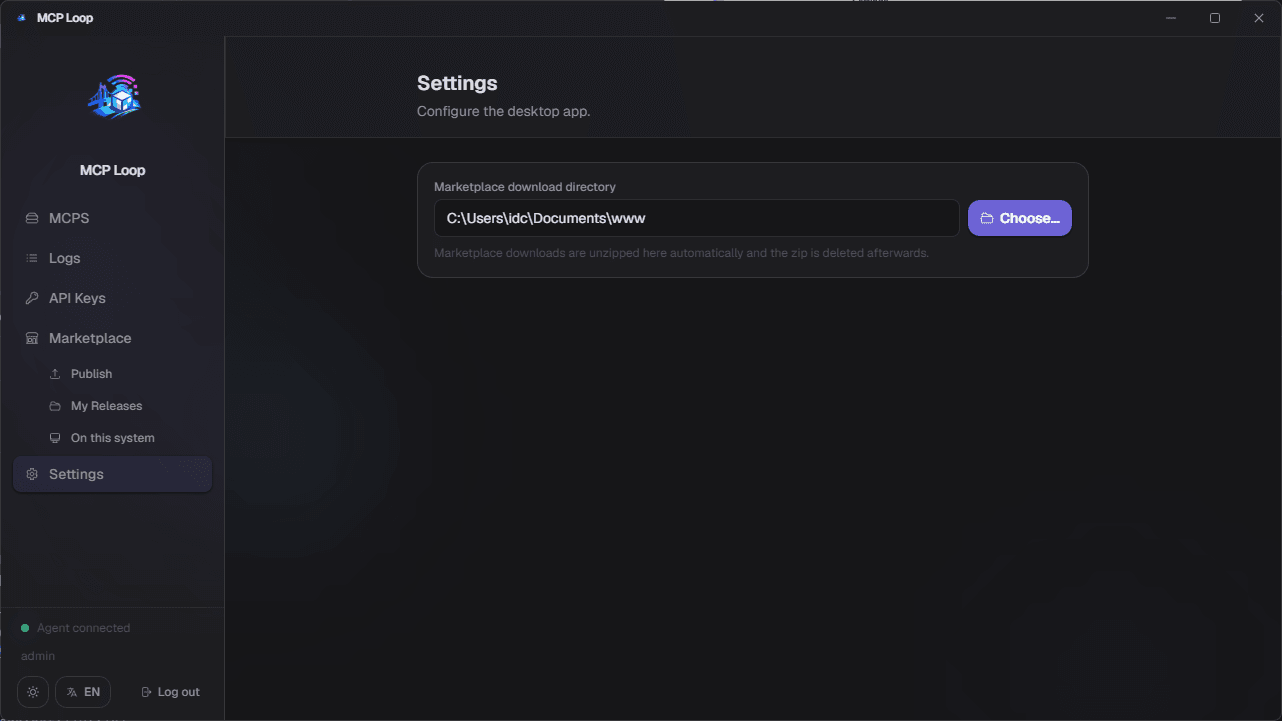
Settings
Pick where downloads land, change your password, turn on two-factor authentication, or wipe every installed item and start clean — all from one tab.
Two ways to authenticate your MCPs
Long-lived API keys for scripts and CI, or OAuth for MCP clients that expect to sign in interactively — pick whichever fits, per client.
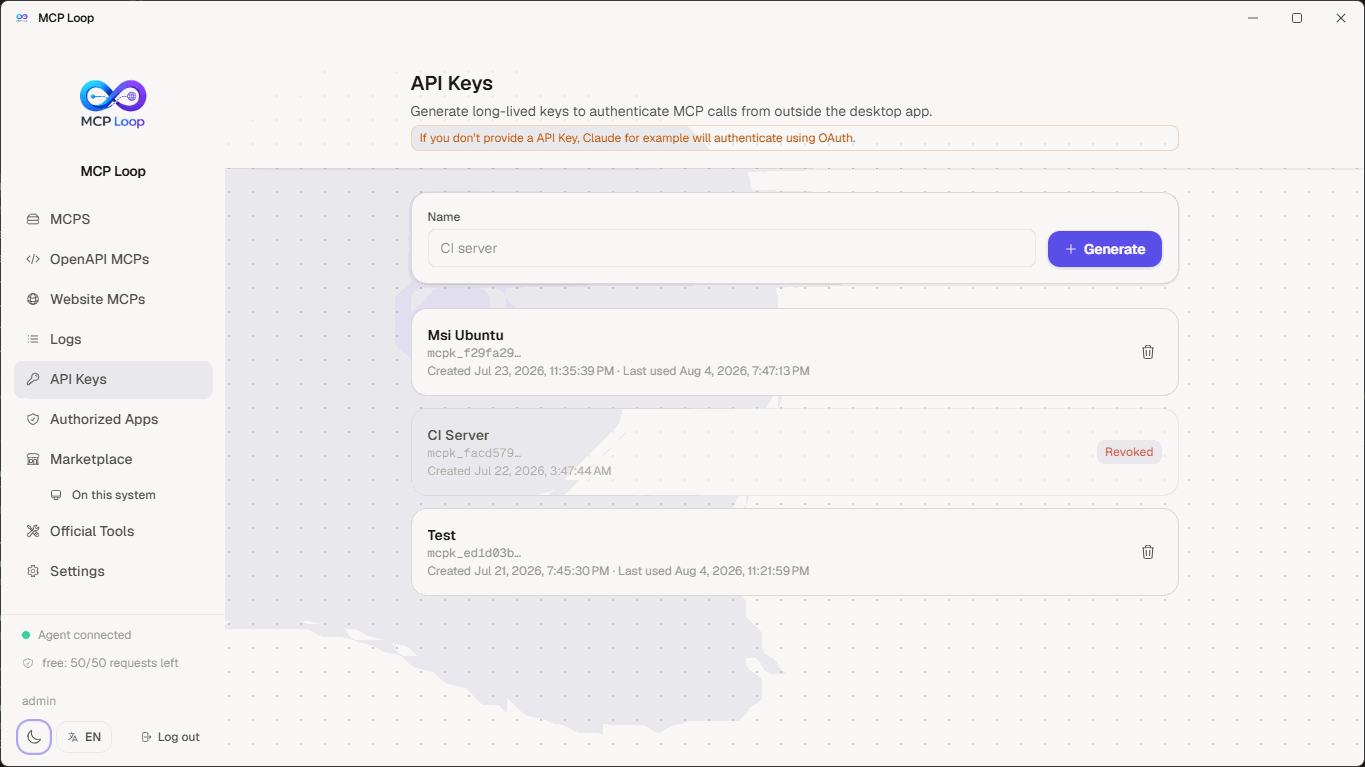
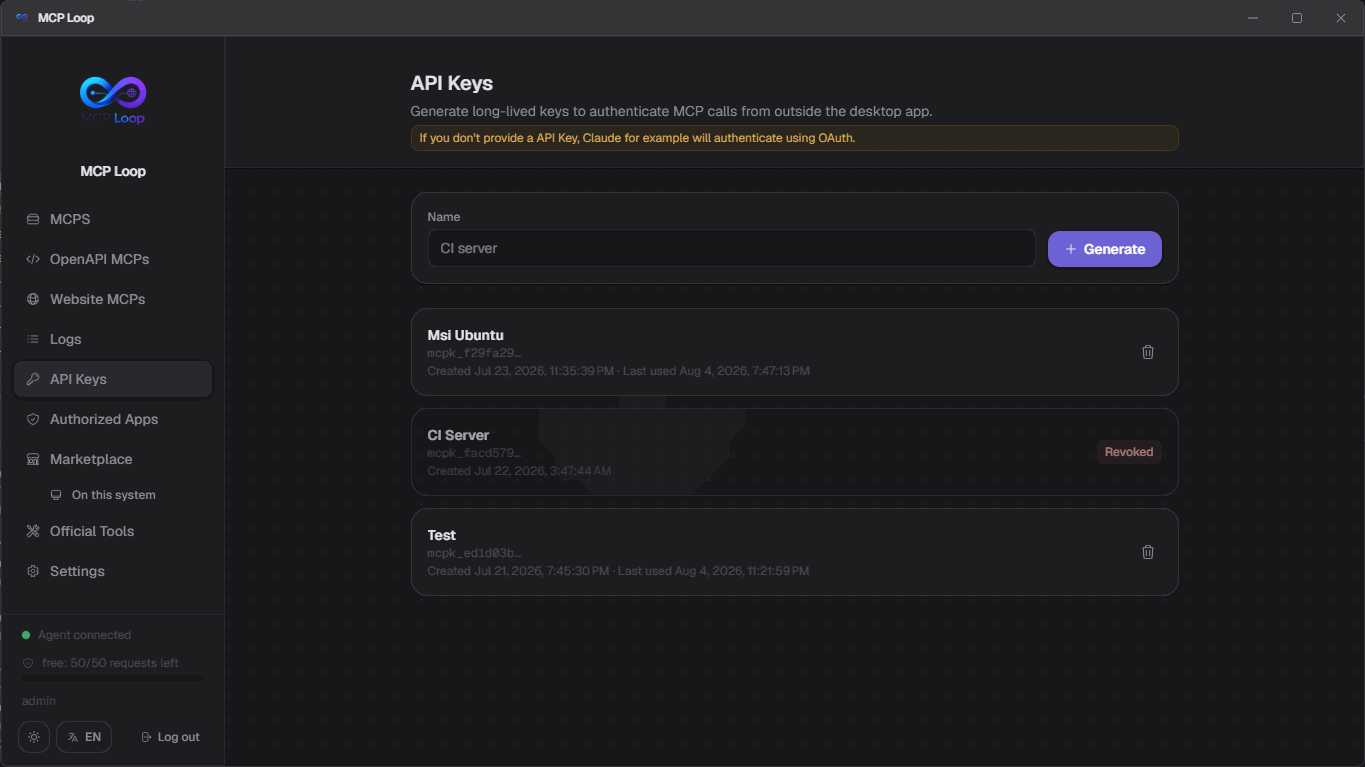
API Keys
Generate a long-lived key from the dashboard and hand it to any client that speaks HTTP directly — curl, ChatGPT, or mcp-loop-stdio for stdio-only tools. Revoke a key any time; it stops working immediately.
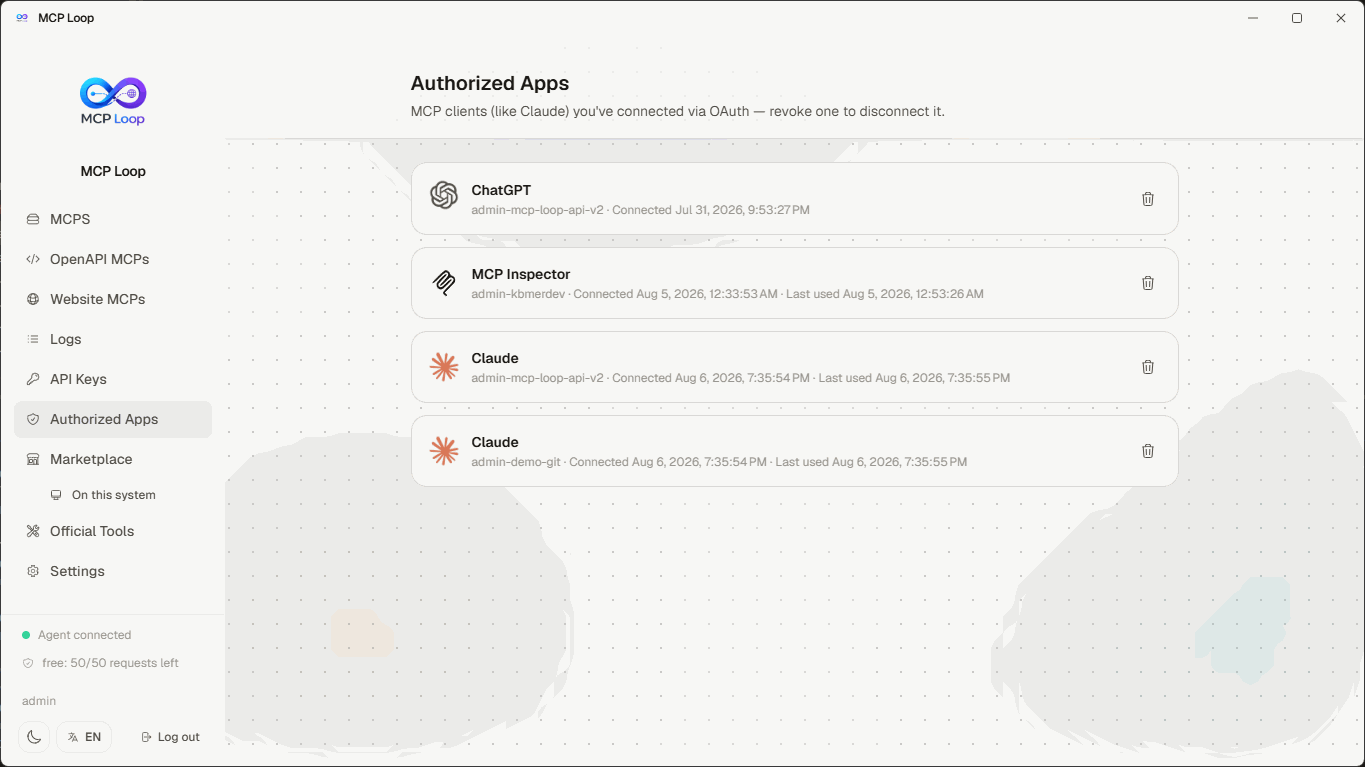
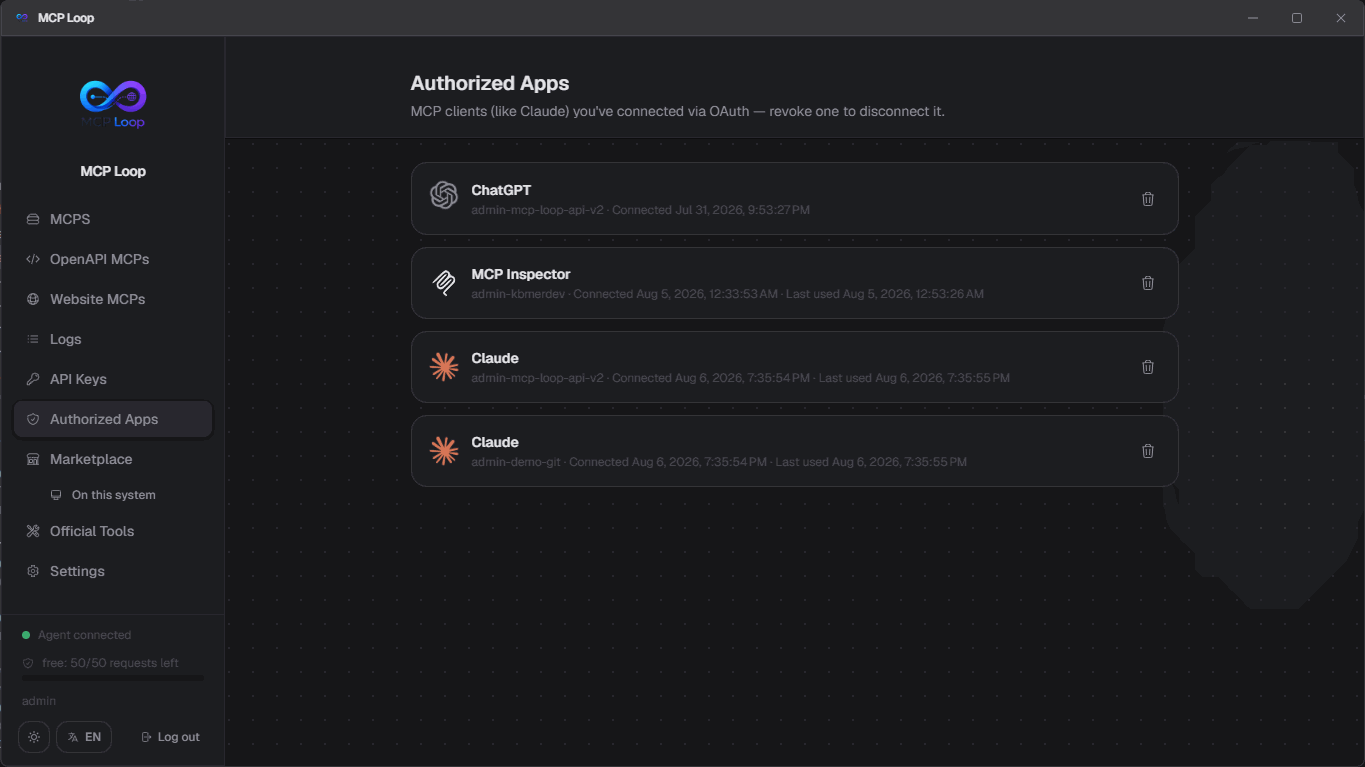
OAuth, for clients that support it
Claude and any MCP client that follows the MCP auth spec can add your MCP by URL and sign in interactively instead — no key to copy around. Approve the connection once, then manage or revoke it any time from Authorized Apps.
Turn any OpenAPI spec into an MCP
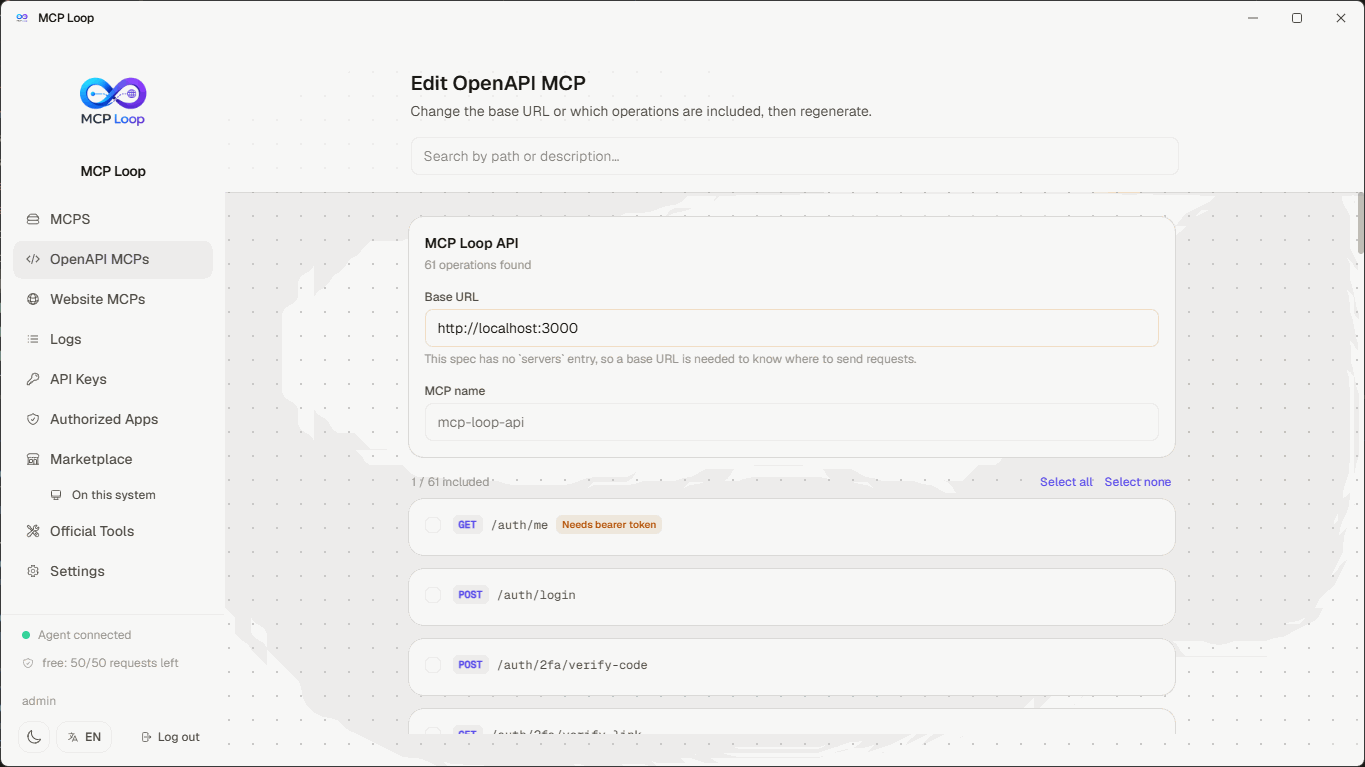
Paste a spec URL or the document itself, review the generated tools, and get a working MCP server — no code to write.
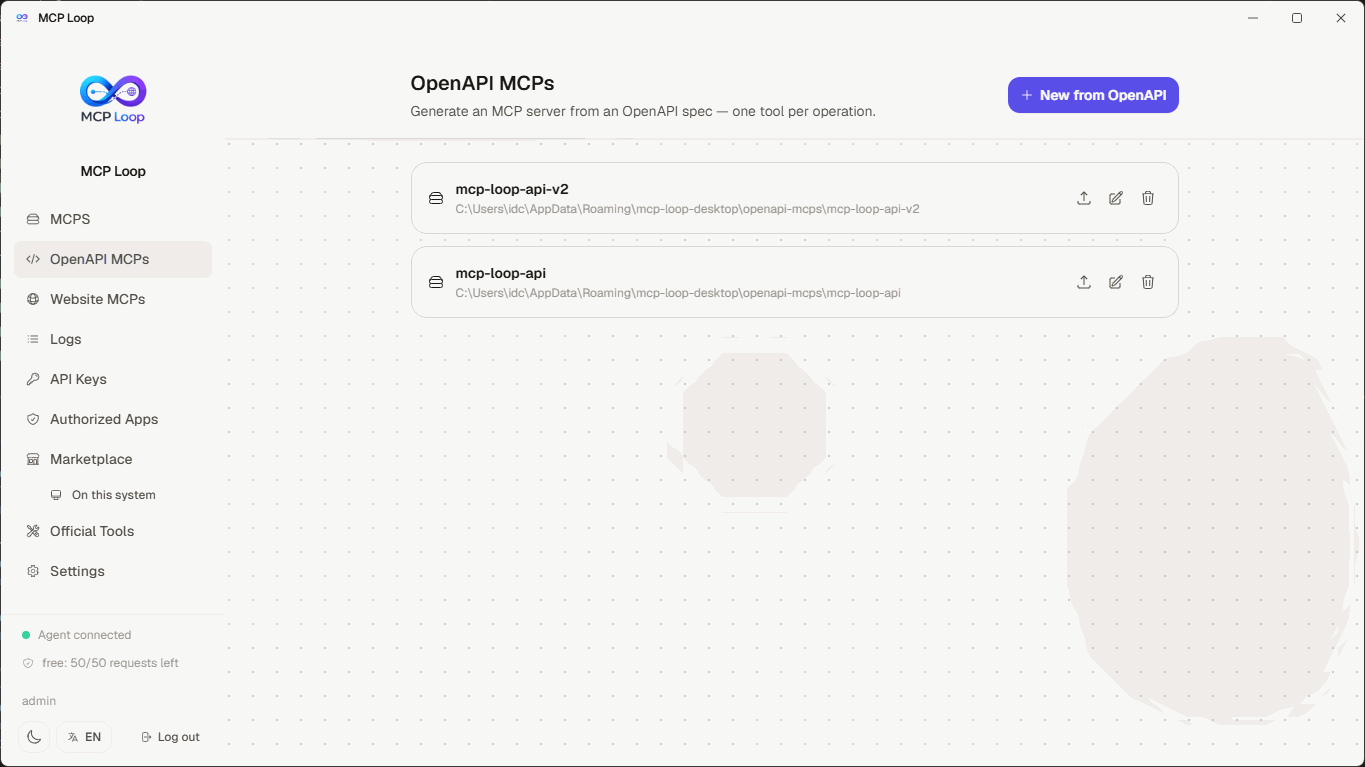
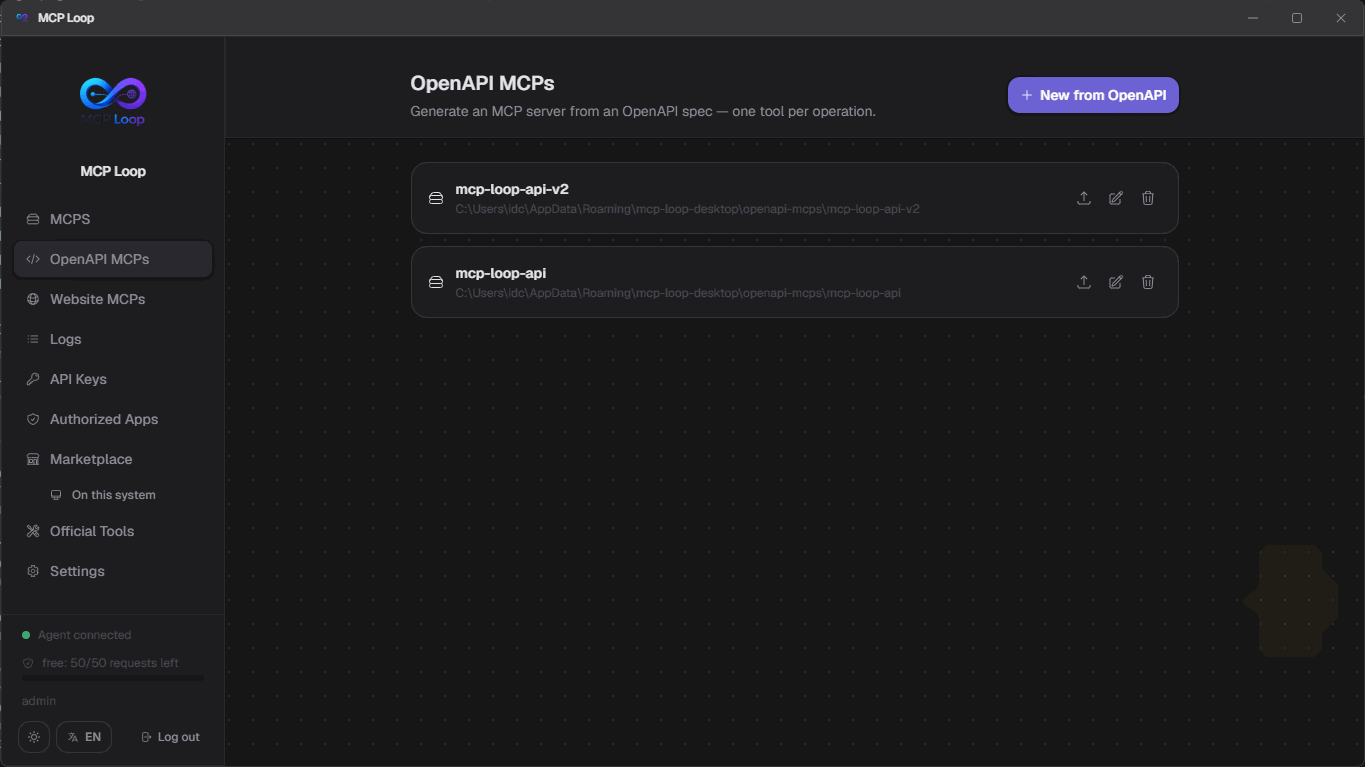
Generate from a spec
Point it at an OpenAPI/Swagger spec and every operation becomes a tool, one request schema each — including request bodies and bearer-token auth, typed correctly instead of a blanket passthrough. Missing a description? You're asked for one before anything's generated.
Update it any time
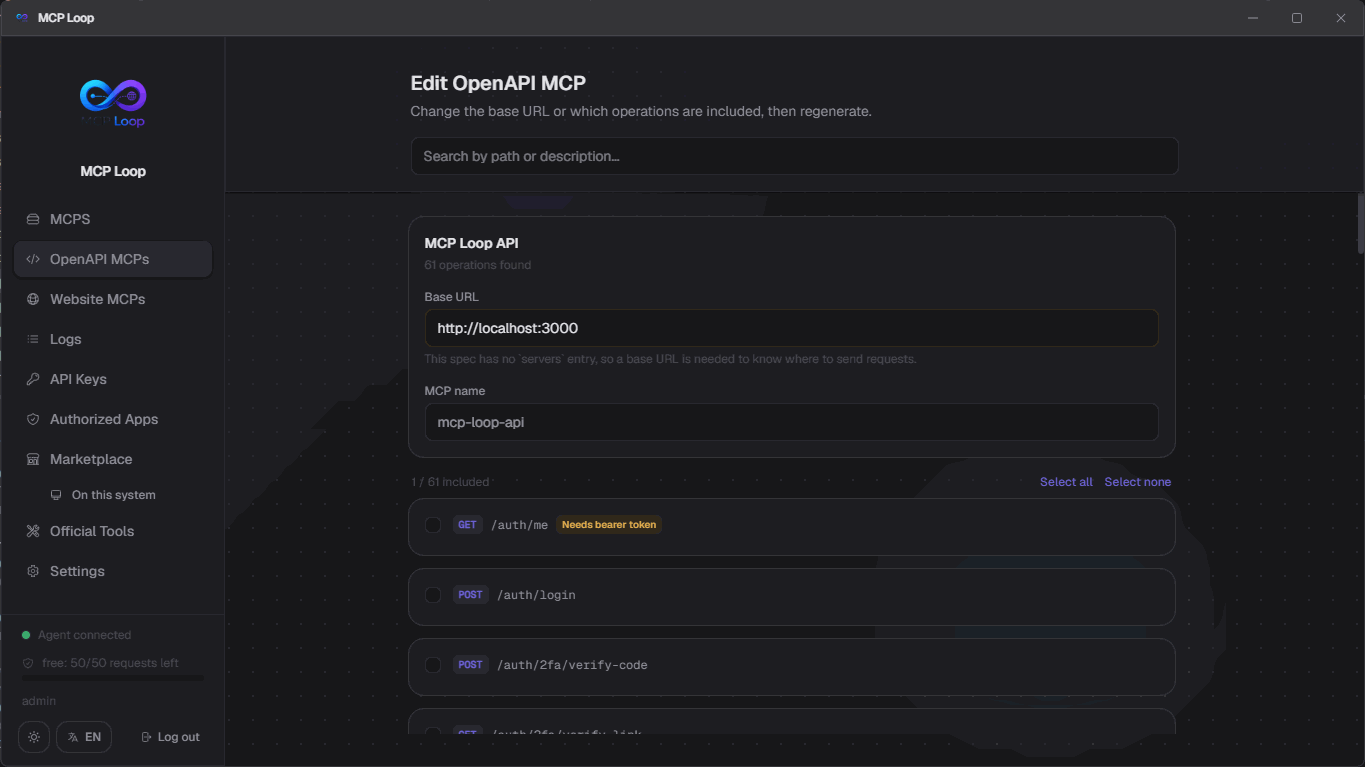
Change the base URL or which operations are included whenever the API changes, and regenerate in place — no need to start over or touch code by hand.
Turn any webpage into an MCP
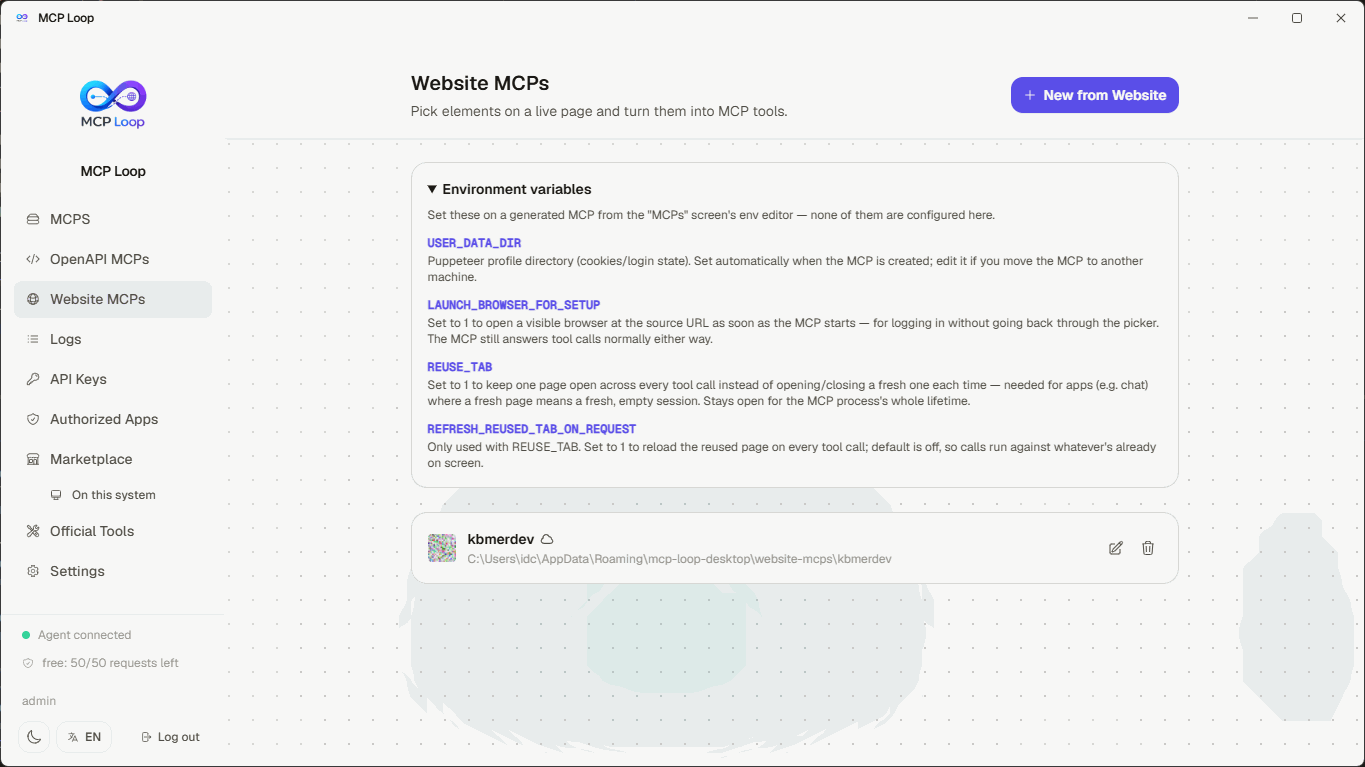
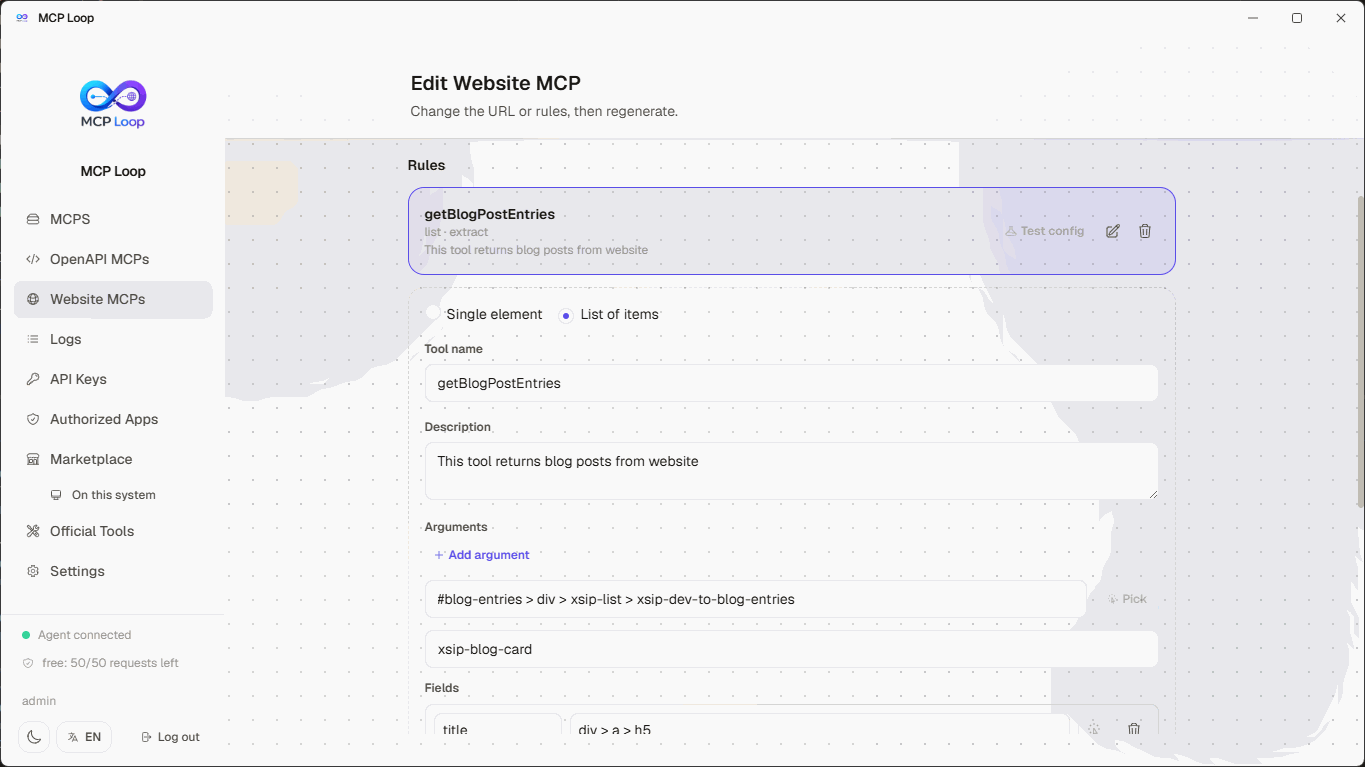
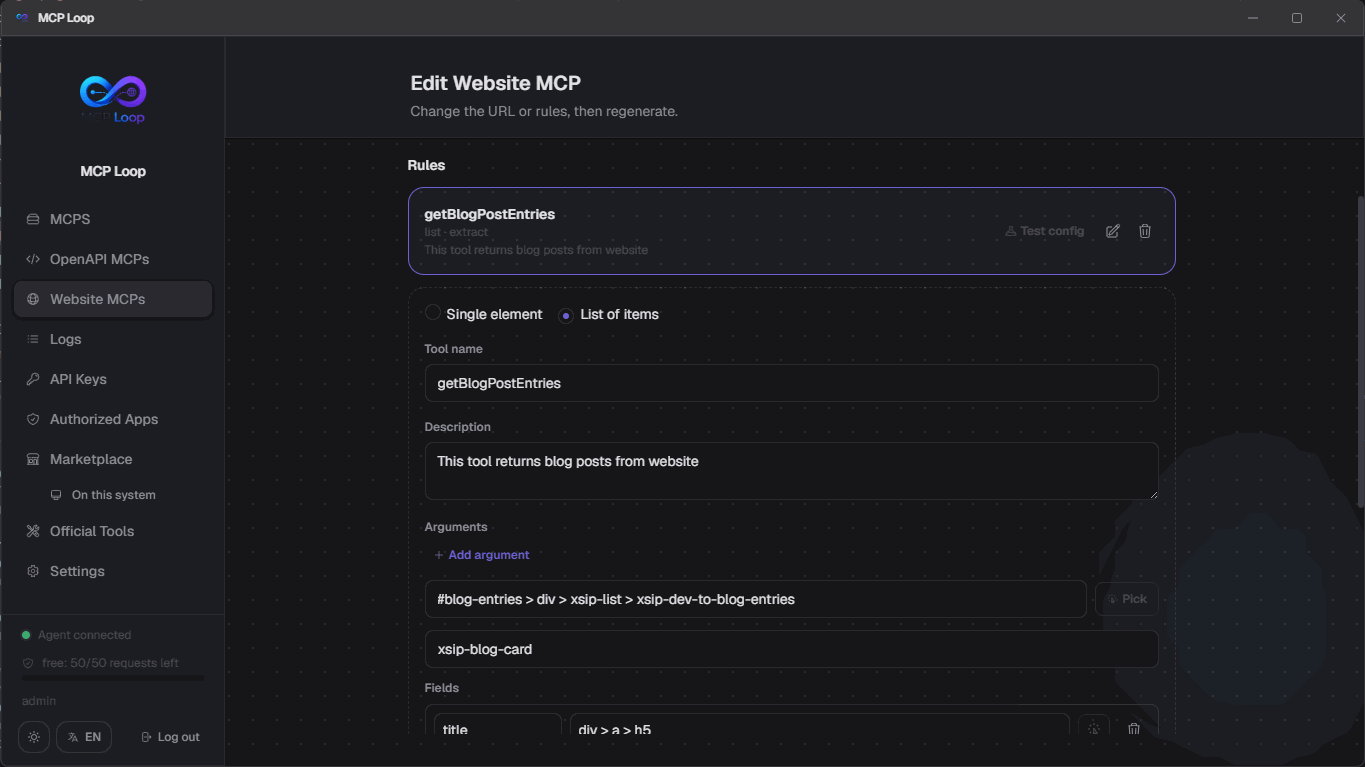
Point a real browser at a page, click the elements you want, and get a working MCP server — no selectors to write by hand.
Pick elements, not selectors
Launch a real browser on the target page and click what you want — a single field, or a repeating list with a container and item selector. Each pick becomes a rule; each rule becomes a tool, with its own name and description.
Update it any time
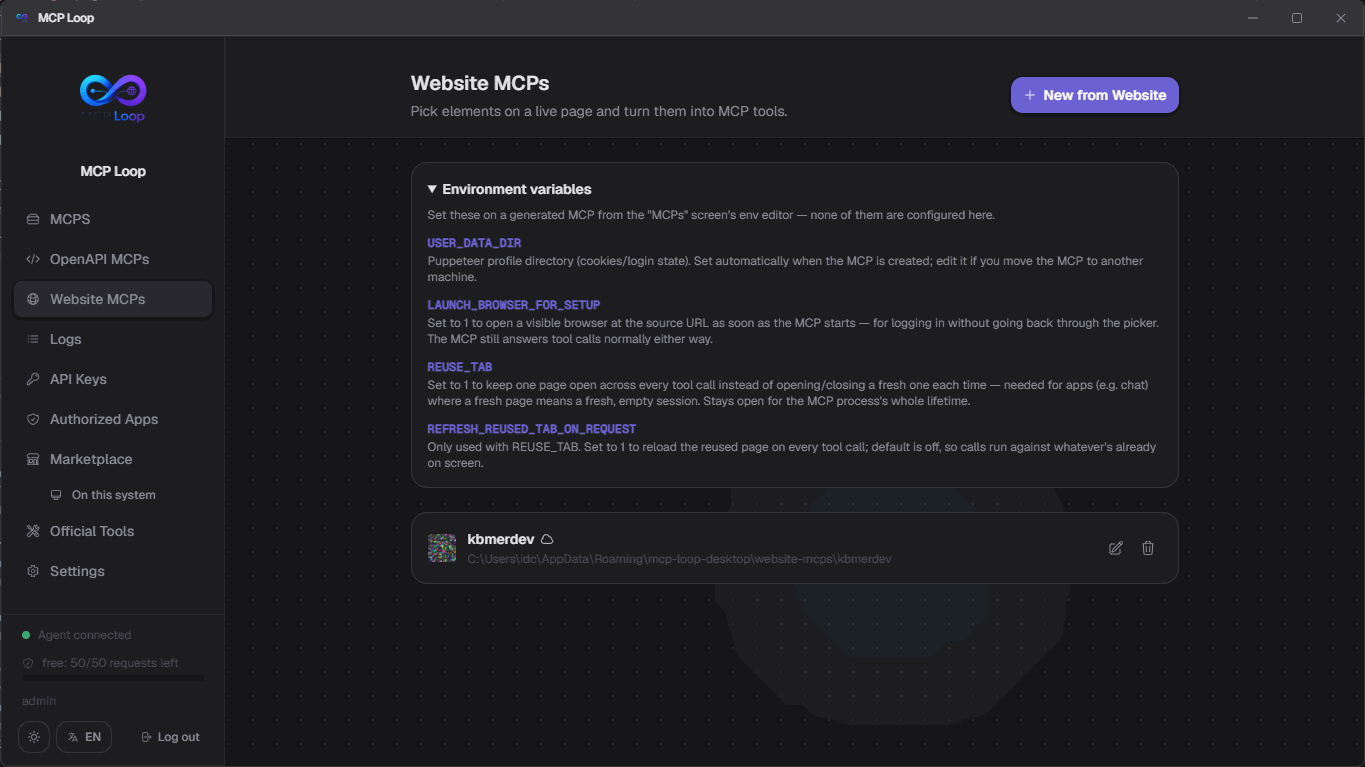
Change the URL, add or edit rules, and regenerate in place whenever the page changes — cookies and login state carry over between sessions, so you don't log in again every time.
Built for running MCPs from anywhere
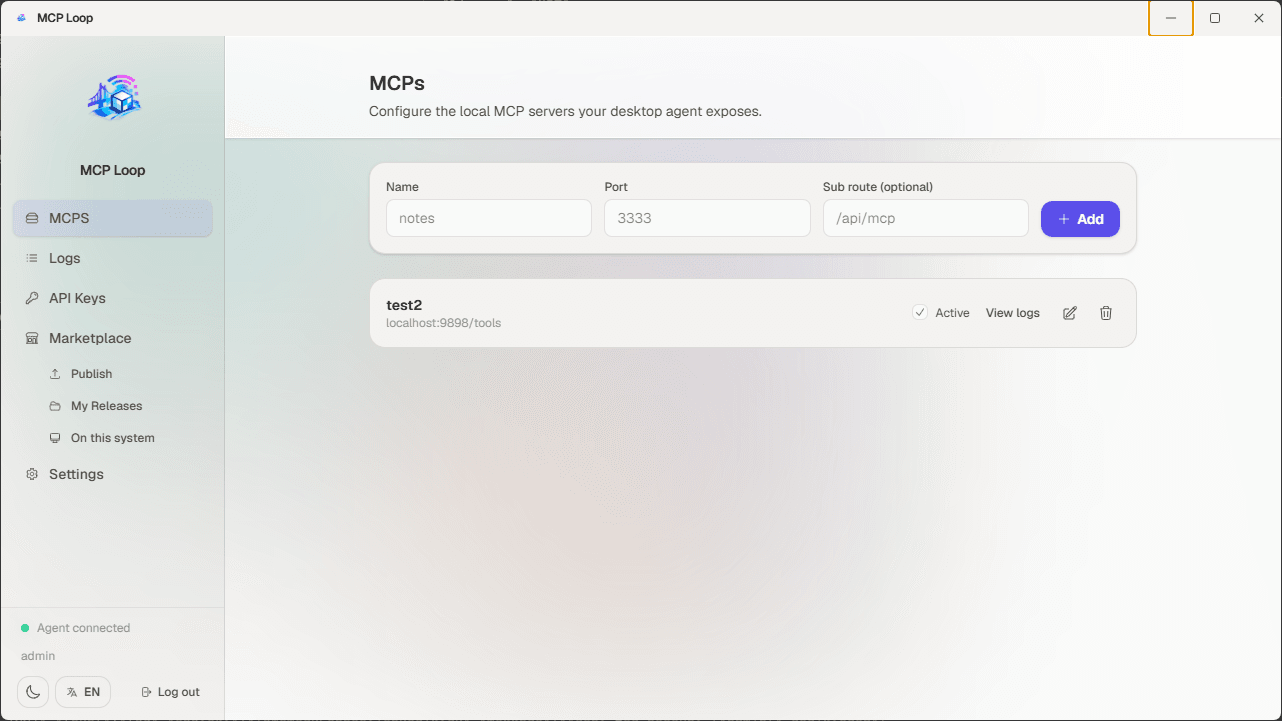
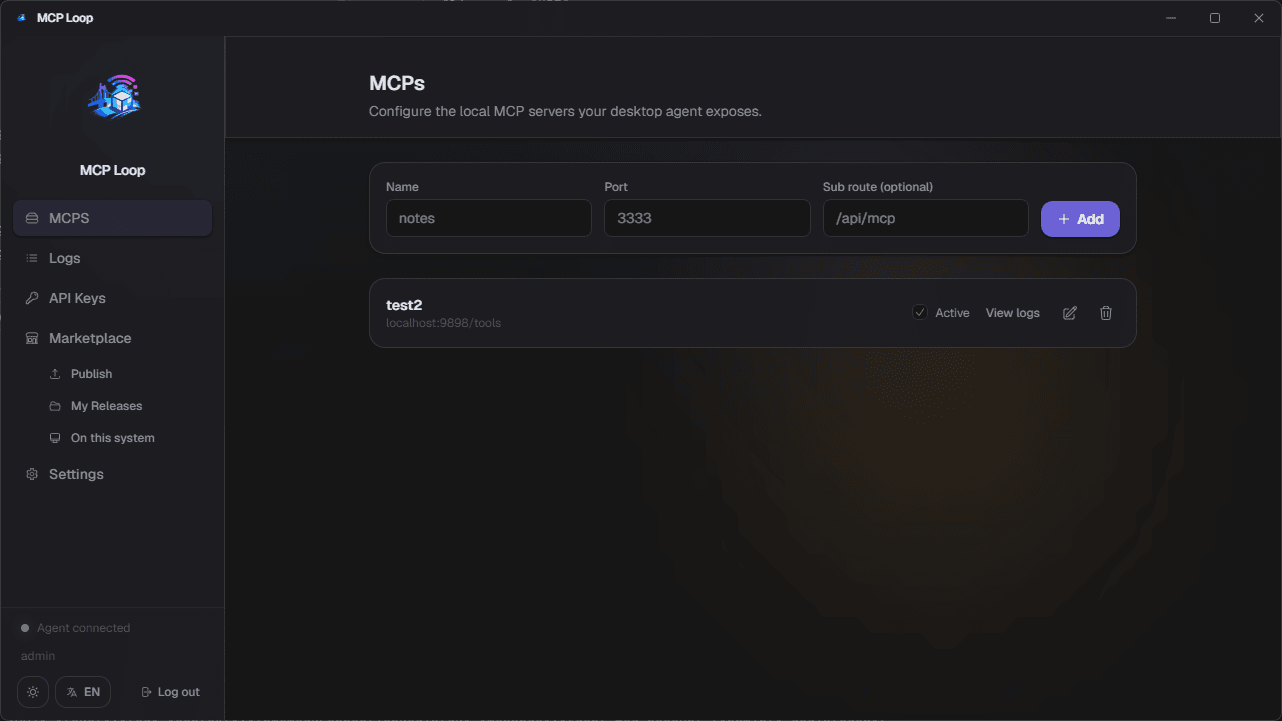
A small, focused feature set instead of a general-purpose tunnel.
No port forwarding
Your agent connects outbound only. No router changes, no static IP, no inbound rules.
Multiple MCPs per account
Register as many local MCP servers as you like, each with its own name and public URL.
Account-scoped access
Every proxied request resolves to a specific MCP owned by a specific, authenticated account.
Real-time relay
Requests are forwarded over a persistent WebSocket connection with correlation IDs and timeouts.
Works with any MCP client
Plain HTTP in, plain HTTP out — compatible with ChatGPT and any other MCP-speaking client.
stdio MCPs, not just HTTP
Tunnel local command-line MCP servers too — the desktop agent spawns and manages the process for you, no local port needed.
Reach a remote MCP from stdio-only clients
"mcp-loop-stdio" is a small CLI that mirrors any MCP Loop MCP over stdin/stdout — for clients like Claude Desktop that can only add stdio servers, not http/https ones.
Custom env vars for stdio MCPs
Set environment variables as plain .env text right in the dashboard — the spawned process gets only those plus the minimal OS vars it needs, never the desktop app's own environment.
Test an MCP without leaving the dashboard
Hit "Test" on any MCP — http or stdio — to connect and list every tool it exposes, no separate MCP client required.
Frequently asked questions
What is an MCP server?
The Model Context Protocol is a standard way for AI tools to call out to external servers for context and actions. MCP Loop doesn't run MCP servers for you — it exposes ones you already run locally.
Is my machine exposed to the internet?
No. Your desktop agent only makes an outbound connection to the bridge. The bridge never initiates a connection to your machine or localhost.
Can I run more than one MCP at a time?
Yes. A single desktop agent connection can serve every MCP configured on your account, each reachable at its own public URL.
Do I need to install the desktop app?
No — install the MCP Loop Chrome extension instead and open the dashboard as a normal website. It tunnels the same way, without Electron.
API key or OAuth — which one should I use?
Use an API key for anything that just needs a credential you paste in once — curl, CI, mcp-loop-stdio. Use OAuth for MCP clients that support adding a server by URL and signing in interactively, like Claude or ChatGPT — it registers itself, you approve the connection from a consent screen, and you can revoke it any time from Authorized Apps without touching a key. Both authenticate the exact same /mcp/:mcpId endpoint; pick whichever the client in front of you supports.
Ready to expose your first MCP?
Create an account, register your local MCP, and get a public URL in minutes.
Go to App